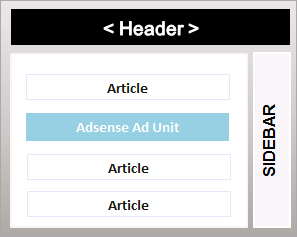
Ad placement and customization has been written and discussed much in the webosphere. In fact, a famous heat map detailing the ideal places for a higher click through rate (CTR) has been floating around for quite a few years now. Then, Google also has a dedicated
help section outlining the best positions for ads on blogs, forums, and sites covering the news, classifieds and gaming.
For blogs, an ad unit somewhere in the middle of your post can potentially boost your CTR, especially if its a lengthy post with fewer images. Unfortunately, unlike WordPress which has a number of excellent plugins for injecting ads anywhere in your blog, blogger does not have this options.
But thanks to a simple JavaScript solution developed by
adsinthemiddle, you can place your Adsense code within a post - anywhere.
Its worth noting that this method does not, by anyway violate the Adsense policies.
1. To Manually Display Ads In The Middle of Selective or Every Post:
Manually inserting Adsense ads in the middle of posts in blogger is pretty simple, here are two easy steps to do so:
- Before proceeding, do backup your template as a precaution.
Step 1:
On New Blogger (Post Designer Template):
Tick '
Expand Widget Templates' in Blogger console and find
<data:post.body/>. Now, replace it with the following code:
<div expr:id='"aim1" + data:post.id'></div>

<div style="clear:both; margin:10px 0">

    <!-- Your adsense code here -->

</div>

<div expr:id='"aim2" + data:post.id'>

    <data:post.body/>

</div>

<script type="text/javascript">
var obj0=document.getElementById("aim1<data:post.id/>");
var obj1=document.getElementById("aim2<data:post.id/>");
var s=obj1.innerHTML;
var r=s.search(/\x3C!-- adsense --\x3E/igm);
if(r>0) {obj0.innerHTML=s.substr(0,r);obj1.innerHTML=s.substr(r+16);}
</script>
Note: In the above code, replace <!-- Your adsense code here --> with your actual Adsense code.
On Old Blogger (Pre-Designer Template):
Find the tag
<$BlogItemBody$> and replace it with a parsed copy of the following code:
<div id="prv<$BlogItemNumber$>"></div>

    <div style="clear:both;margin:10px 0">

        <!-- Your AdSense code -->

    </div>

    <div id="fst<$BlogItemNumber$>">

        <$BlogItemBody$>

    </div>

    <script type="text/javascript">
    var obj0=document.getElementById("prv<$BlogItemNumber$>");
    var obj1=document.getElementById("fst<$BlogItemNumber$>");
    var s=obj1.innerHTML;
    var r=s.search(/\x3C!-- adsense --\x3E/igm);
    if(r>0) {obj0.innerHTML=s.substr(0,r);obj1.innerHTML=s.substr(r+16);}
    </script>
Note: Replace <!-- Your adsense code --> with your actual Adsense code.
Step 2:
Now, where ever you wan't your ad unit to appear, put a special comment:
<!-- adsense -->
Done.
2. Adding Featured Posts in the Middle (or anywhere) on your post.
Similarly, using the above code we can add a featured post in the middle of our content.
Earlier, I shared a simple
blogger related posts widget. Using the above JavaScript, lets see how we can add that related widget posts in the middle of an article.
The idea remains the same. Just for differentiating, replace the word 'adsense' with 'related' in both, the JavaScript and special comment. Then place the related post code as in the code below:
For instance:
On New Blogger (Post Designer Template):
Tick '
Expand Widget Templates in the Blogger console and find
<data:post.body/>. Now, replace it with the following code:
<div expr:id='"aim1" + data:post.id'></div>

<div style="clear:both; margin:10px 0">

<script src="http://ajax.googleapis.com/ajax/libs/jquery/1.3.2/jquery.min.js" type="text/javascript"></script>
<script src="http://blogger-related-posts.googlecode.com/files/related-posts-widget-1.0.js" type="text/javascript"></script>
 <script type="text/javascript">
  relatedPostsWidget({
  'containerSelector':'div.post-body'
  ,'loadingText':'loading...'
 });</script>

</div>

<div expr:id='"aim2" + data:post.id'>

    <data:post.body/>

</div>

<script type="text/javascript">
var obj0=document.getElementById("aim1<data:post.id/>");
var obj1=document.getElementById("aim2<data:post.id/>");
var s=obj1.innerHTML;
var r=s.search(/\x3C!-- related --\x3E/igm);
if(r>0) {obj0.innerHTML=s.substr(0,r);obj1.innerHTML=s.substr(r+16);}
</script>
Step 2:
Now, wherever you want your related posts to appear, put a special comment:
<!-- related -->
Done!