Showing posts with label Internet. Show all posts
How to Remove or Disable Lightbox Image view from Blogger

How to Remove or Disable Lightbox Image view from Blogger

lightbox
Blogger has officially announced that the lightbox image view has been implemented on all blogger blogs. When you click an image it opens up with a large transparent black frame around it, exactly the same way photos are displayed on your Google+ account when clicked.

While for some, this feature is an awesome improvement to how pictures are displayed, but for most bloggers users, this addition has caused problems. The blogger help forum is filled with complains by blogger users, demanding that this feature must be removed and others who see it as a bug in the blogger template.

Unfortunately blogger did not offer it as an opt-in feature. The problem with this addition is that images on a blog post don’t show up enlarged when clicked, as the way they showed up before the changes were made by blogger.

Until blogger address this issue, here is a work around by Mark from EnglishJavaDrinker that removes the lightbox affect.

To implement the code, simply head to:

Dashboard > Template > Edit HTML and find the </head> tag.

Now copy the code below and paste it right before </head>

<script type="text/javascript">
//<![CDATA[
function killLightbox() {
  var images = document.getElementsByTagName('img');
  for (var i = 0 ; i < images.length ; ++i) {
    images[i].parentNode.innerHTML = images[i].parentNode.innerHTML;
  }
}
if (document.addEventListener) {
  document.addEventListener('DOMContentLoaded',killLightbox,false);
} else {
  document.attachEvent('onDOMContentLoaded',killLightbox);
}
//]]>
</script>


Update: You can now simply head over to blogger settings and disable the lightbox option.

The option is available under Settings -- Posts and Comments -- Showcase images with Lightbox

All Credit: EnglishJavaDrinker

How To Add a Subscribe Option to your Facebook Profile

How To Add a Subscribe Option to your Facebook Profile

icon_facebookFacebook has added an option to let people "subscribe" to your profile just like the way they follow you on Twitter. Whenever you post an update on your wall with the privacy option set as “Public”, it will appear in the "News Feed" section of your subscribers.

The Subscribe button that sits on the top right side of a profile and wall page lets you hear from interesting people you're not friends with—like journalists, artists and political figures. Subscribers can choose what type of updates they want to see in their News Feeds. This includes: All updates, Most updates and Important Updates. There are further options to select the types of updates that should be posted to a News Feed. These can be live events, status updates, games, photos and videos.

facebook-subscribe-button

How To Enable the Subscribe Button on your Facebook Profile


To add the subscribe button to Facebook and start getting subscribers, go to the Subscriptions tab on the left-hand side of your profile. Or, visit this subscription page and click Allow Subscribers. There on you can select whether you want subscribers to comment on your updates or get notified about new subscribers. You're done!

However "Subscribe" is an opt-in feature. The only people who allow subscribers will have a Subscribe button on their profile. If you don't see the button, you can't subscribe.

Find Flight Related Information Easily With Google Flight Search

Find Flight Related Information Easily With Google Flight Search

Google has added a new search feature that will help you sort through flight information and fares. Compare flights, dates, destinations, and fares in an instant.

The search feature is available initially to a select group of U.S cities and displays results for economy class round-trip flights only. Whether you are looking for the cheapest flight to a particular city or a non stop flight, Flight Search can help you quickly find the best option for your trip.

Flight search results can be filtered out in several ways: dates, price, duration, number of stops, airlines, connections, outbound time and return time etc.

google_flight_search

The map itself can be used to find several bits of information:
  1. View flight options for a city by clicking that city on the map.

  2. Click on an airport marker to see nearby airports with their lowest price flight, and check off the boxes for the airports to include in your flight search.

  3. Zoom in on the map to see more airports in a particular area.
    Once you select a departure city, hover over any cities on the map with your mouse to compare prices on flights to those destinations.

  4. Drag and drop the markers to adjust the origin and destination of your trip, and then explore various travel options based on different locations.

Increase Gmail Account Security with basic Security Tips from Google

Increase Gmail Account Security with basic Security Tips from Google

gmail
For most of us, a compromise on an email account could mean a compromise on a dozen connected accounts. Its always a good practice to have separate public and private email addresses. A public email address that your would use to subscribe to online services such Facebook, twitter, LinkedIn, Flickr, Quora and several other sites and a private one that can be associated with Bank Accounts, Hosting Company, PayPal, Amazon, Online file hosting service and any other place where account security is even more critical.

Having separate email addresses combined with a strong password maybe the best security measure but if you are a Gmail user there are other basic, yet important steps that you can take to make your Gmail even more safe and secure.

Here are two videos from Google. One providing the very basic Gmail security tips and the other about the recently introduced — 2 Step Verification method.

Basic Gmail Security Tips:


2 Step Verification:


Search Videos from Specific Websites with Google

Search Videos from Specific Websites with Google

You need to re watch a clip you recently saw on some popular sports website but can’t seem to find it easily or you want to find videos about some news events making headlines but these to be sourced only from news websites but can’t exactly figure out how.

videoWell, Google Videos isn't the only places to search hundreds of sites for video content but certainly is among the better resources if not the best.
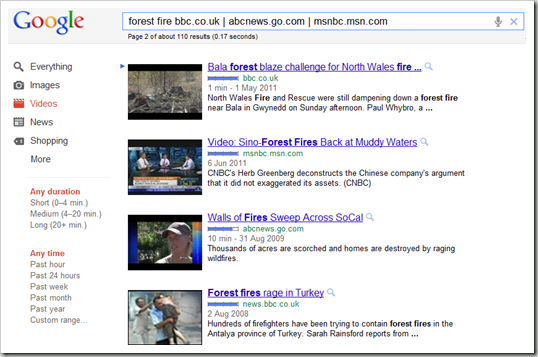
Simple search operators that we use on Google to find textual content can also be applied to video searches in a similar way to limit search a great extent to specific sites only.

For example: You wish to find videos of “forest fire” from some of the major online news sites you follow.

Head straight to Google Videos and use the “|” operator as below to get results only from desired news sites. In my case, the bbc, abcnews and msnbc.

forest fire bbc.co.uk | abcnews.go.com | msnbc.msn.com

video-news-search

Rarely, a search term may show up a couple of videos from YouTube or some other video site, along with results from our specified sites. This can happen  only if a video on YouTube or another video site has a link in the description area to any of the sites we want video results from.

We can always use the “ - “ search operator to leave out such results.

forest fire bbc.co.uk | abcnews.go.com | msnbc.msn.com –youtube.com

Search for Videos from specific website with Truveo:

Many search engines provide us with an extensive video search functionality. Turveo is one of the best ones. It can pull results from major video sites including news and entertainment websites.

Simply enter your search terms and filter results from the sources listed.

truveo-news

Create Shortcuts for Texts & Signatures to Save Time in Google Chrome

Create Shortcuts for Texts & Signatures to Save Time in Google Chrome

shortcutsThis is nice. A really handy Google Chrome extension for you if you frequently use both long or short standard phrases, while you write emails, letters or anything online using Google Chrome.

Popchrom lets you create custom abbreviations for words and phrases which you can expand to the actual word when you hit Ctrl + Spacebar or any other key combination that you assign for it in the extension settings.

To setup words or phrases that you want to create shortcuts for, just go to the extension options and type in the abbreviation followed by the actual text and save.

popchrom-settings

It works for any page that has a text input field. The extension icon will appear in the chrome address bar whenever it detects a text field. When you type in the shortcut and press Ctrl+Spacebar, the abbreviated word will change to the actual phrase or sentence.

Install Popchrom extension


How To Video Chat with Multiple Friends On Facebook

How To Video Chat with Multiple Friends On Facebook

multi-user-chatOne of the most popular feature of Google+ is that you can have a video chat with upto 10 friends at a time, Facebook on the other hand only allows you to have a one to one chat with your friends and family yet.

Although there is no multiple video chat feature yet, however social hangouts is a third-party Facebook app that brings group chat facility to Facebook, allowing you to have a video chat with upto 20 people at once.

In the developers own words:

“(Social Hangouts) a multi-user video chat application on Facebook is now ready to take on the millions of Facebook users in a click of a button. Social Hangouts is a simple, easy to use application; you access the app without ever leaving Facebook, invite up to 20 of your contacts from your friends list and you could all be having a live video chat in no time! This might prove to be in Facebook’s favor, who to-date has managed to stay on top due to application and developers such as these and add to its arsenal against Google+”

facebook-multi-video-chat

To start a video chat with more than one friend at a time, go to social hangouts and invite friends. The application will start and transmit your video to your friends and vice versa.


Find Images From a specific Country using Google Advance Image Search

Find Images From a specific Country using Google Advance Image Search

Searching for images by region is a new option that Google has added to its existing set of advance image search options.

If you want to search for images but wish to get the results returned from blogs and websites from a specific country, just visit the advance image search page and select the desired country from the dropdown menu in Region option at the bottom.

The screenshots below, display image results for the word “Protests” using Egypt and Libya as an example. The results are entirely different in both cases, with photos from the recent protests in the respective countries.

1) Search Term ‘Protests’ for Egypt

egypt-protests

2) Search Term ‘Protests’ for United Kingdom

uk-protests


Change YouTube Player Color to White or Black For Embedded Videos

Change YouTube Player Color to White or Black For Embedded Videos

youtubeGoogle recently changed the theme of its YouTube player from white to black. When you embed a video to your blog or website, you can, not only modify the appearance to white or black, according to your webpage theme but also change the color of the seek bar.


How To Embed Videos Using Black or White YouTube Player Skin?


To modify the player’s appearance to your liking you need to add the code in red to the embed code. You can choose from the following new themes introduced by YouTube:

Black Theme With Red Seek Bar:

youtube-dark-red
<iframe src="http://www.youtube.com/embed/vYCahlG6bdY?theme=dark&color=red" frameborder="0" width="520" height="326" allowfullscreen></iframe>

Black Theme With White Seek Bar:

youtube-dark-white
<iframe src="http://www.youtube.com/embed/vYCahlG6bdY?theme=dark&color=white" frameborder="0" width="520" height="326" allowfullscreen></iframe>

White Theme With Red Seek Bar:

youtube-light-red
<iframe src="http://www.youtube.com/embed/vYCahlG6bdY?theme=light&color=red" frameborder="0" width="520" height="326" allowfullscreen></iframe>

White Theme With White Seek Bar:

youtube-light-white
<iframe src="http://www.youtube.com/embed/vYCahlG6bdY?theme=light&color=white" frameborder="0" width="520" height="326" allowfullscreen></iframe>

Fast Email Fetching In Gmail

Fast Email Fetching In Gmail

gmail-logoPOP e-mail fetching is a great feature of Gmail to retrieve messages from your other emails accounts via POP and display them in your inbox alongside the emails that come directly to your Gmail account.

Anyone who has been channeling emails from various addresses to one master Gmail address, knows that Gmail uses a timing algorithm to retrieve messages from POP accounts. The problem, however is the time lag. Often you would want to instantly check whether the email you were waiting for has arrived or not.

Quickly Check If a New Email Has Arrived or Not :

To check or retrieve emails at any desired time, head to your email settings and under Labs, enable the “Refresh POP Accounts” option. Then save changes.

gmail-fetching

From now on you will see a refresh link at the top of your inbox. Whenever you refresh, Gmail will check and retrieve any new message from any of your associated accounts.

email-fetching


Images Missing from Blogger Blog Posts when deleted from Google+ Albums

Images Missing from Blogger Blog Posts when deleted from Google+ Albums

One of the many features that Google introduced in its newly launched social platform: Google+, is that it displays all your Picasa web albums in the photo section of your Google+ account. You can view photos from your circles, your phone, your own photos and of course, it allows you to view, edit or delete your Picasa web albums directly from the Google+ interface.


What’s the link between Google Plus Albums and Blogger Posts?

imageMany Blogger blog users are not aware that the photos they use on their blog posts are saved in their Picasa web album. So when they join Google+ for the first time and see all their photos from their blog, they assume that the photos are also viewable by their friends and family members or even anyone who isn’t in their circles.
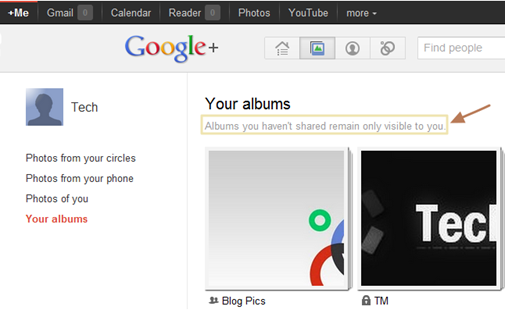
This is when the problem starts. Some Google+ users start deleting their albums and can unknowingly end up deleting the albums containing photos they have used on their blog posts for years.

This can easily be avoided. Users must know two things to be on the safe side:

1) Albums that you have not shared will be visible only to you:

As a Google+ users, you shouldn’t be worried about your blog images showing up in the photo section of their Google+ account as only the images that you share will be visible to your circles.

google-photos


2) Deleting Photos from Google+ will also be permanently deleted from Picasa web album.

Any Picture that you remove from your Google Plus account will also be removed permanently from Picasa web album, hence from your blog if you had used it on your blog.

When you are about to delete an album, a dialog box will be displayed stating that photos will also be removed from Blogger, Picasa Web and other Google Products.

google-plus-delete-msg


Related: Backup your Picasa Web Photos and data from other Google Product


The Various Activities On The Internet Every Minute [Infographic]

An interesting and informative Infographic produced by Shanghai Web Designers highlights many of the major activity going on every sixty seconds on the internet. These include video uploads, domains registered, new blogs and much more. As the number of internet subscribers increase, it is estimated that almost a billion new pages are published every day.

60 Seconds - Things That Happen On Internet Every Sixty Seconds
Infographic by- Shanghai Web Designers                                                           [Click to enlarge]

The following stats are highlighted in the graphic.
  • Search engine Google serves more that 694,445 queries
  • 6,600+ pictures are uploaded on Flickr
  • 600 videos are uploaded on YouTube videos, amounting to 25+ hours of content
  • 695,000 status updates, 79,364 wall posts and 510,040 comments are published on Social Networking site Facebook
  • 70 New domains are registered
  • 168,000,000+ emails are sent
  • 320 new accounts and 98,000 tweets are generated on Social Networking site Twitter
  • iPhone applications are downloaded more than13,000 times
  • 20,000 new posts are published on Micro-blogging platform tumbler
  • Popular web browser Firefox is downloaded more than 1700 times
  • Popular blogging platform WordPress is downloaded more than 50 times
  • WordPress Plugins are downloaded more than 125 times
  • 100 accounts are created on professional networking site LinkedIn
  • 40 new Questions are asked on Yahoo Answers.com
  • 100+ questions are asked on Answers.com
  • 1 new article is published on Associated Content, the world’s largest source of community-created content
  • 1 new definition is added on Urban Dictionary.com
  • 1,200+ new ads are created on Craigslist
  • 370,000+ minutes of voice calls done by Skype users
  • 13,000+ hours of music streaming is done by personalized Internet radio provider Pandora
  • 1,600+ reads are made on Scribd, the largest social reading publishing company

Google Plus Keyboard Shortcuts and Goo Plus Manager

Keyboard shortcuts are a great way to save time. Instead of finding a menu or an option, you just press a combination of keys. Google+ already has a few built-in shortcuts which you can use to navigate through the Google+ interface.

Installing Goo Plus Manager extension for chrome adds several keyboard shortcuts which can be used to jump to various sections in Google+.

Moving to sections:
g + h : go home
g + p : go to profile
i + i : go to photos
i + p : go to phone photos
i + m : go to photos of me
i + a : go to my photo albums
g + i : go to incoming
g + n : go to notifications

Navigating
:
(Already in Google Plus):
j
:
Go to next post
k
:
Go to previous post
Space
:
Move down Stream by regular intervals
Shift + Space
:
Move Up Stream by regular intervals
Enter
:
When a Stream update is selected Enter /Return moves the cursor to the comment box
QQ
:
Gives focus to the comments box
Enter + Tab
:
Submit Comment


Formatting Text:


*
:
Using * symbol in the beginning and end of a text will make the text bold.
*This will appear bold*
_
:
Using _ symbol in the beginning and end of a text will make the text italic.
_This will appear italic_
-
:
Using – symbol in the beginning and end of a text to strikethrough text.
-This is a strikethrough text-
@ / +
:
To mention someone in a text use the @ or + symbol before their name.
@Sara

Goo Plus Manager Menu Options:

In your Google+ profile Goo Plus Manager appears besides the notification box on the top right corner of all Google Pages. Simply clicking on its icon drops down a menu with the following options for easy navigation.
- Home
- Profile
- My Photos
- My albums
- Photos
- Phone Photos
- Circles
- Incoming
- Notifications
- Shorten Links

Download Goo Plus Manager chrome extension.

Google lets you make money by solving problems

Google lets you make money by solving problems


Google has launched a new social platform where people can earn money by solving problems.

Prizes.org is run by Slide, a gaming company that Google acquired last year for $182m. The Idea behind this new service is simple: Users create a contest where they post a question or task and fix a cash amount for the best answer or task to be done. For example users can ask for ideas for a new website, advice on a comprehensive “Get Healthy” plan, or planning an ideal summer vacation, etc.

Each task is to be done within a fixed amount of time, during which people can vote for the best answer or advice given. The user with the most votes wins the cash prize. The money on offer currently for the questions is between 10$-50$.

Interesting to note that the site features very little Google branding and the sign-in, currently is through Facebook or Twitter, not with a Google ID, which may be a smart move to reach a bigger audience.

prizes-org

Prizes.org is in beta but its available for everyone, although the contest creation like all recently launched Google services is still invites-only.